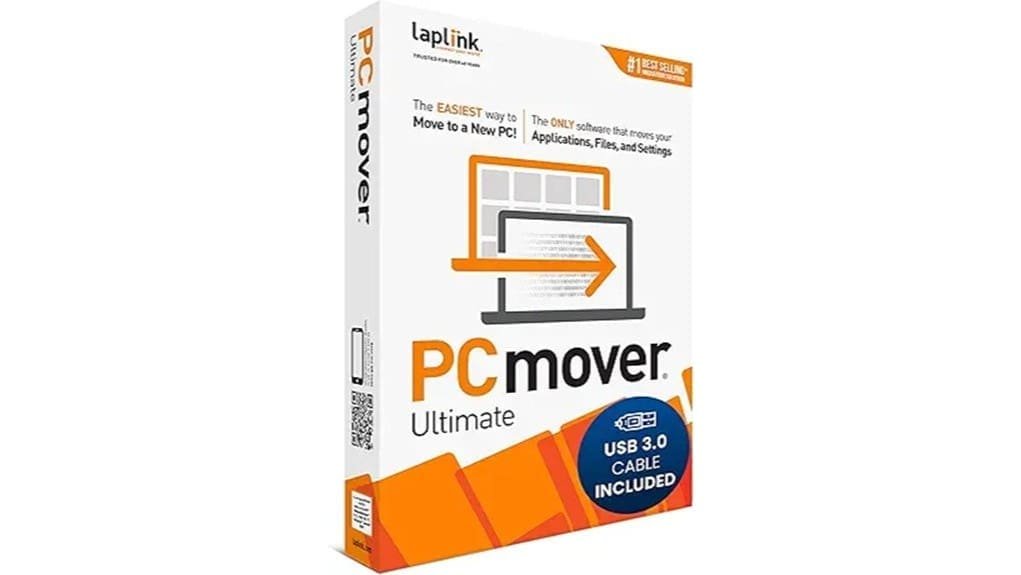
You’ll get a fast, controlled PC migration that moves apps, files, and settings with AI-guided summaries and easy rollback, so you won’t lose work or time during upgrades or tech-assisted moves. Transfers use Wi‑Fi Direct, an optional USB 3.0 cable, or download mode for remote jobs, and granular selection preserves app states while flagging conflicts. Licensing covers unlimited retries from one source, and SafeErase is included. Keep going and you’ll find performance details, transfer scope, and pricing.
Some Key Takeaways
- PCmover Ultimate 11 reliably transfers applications, files, and settings between Windows PCs with granular selection and rollback options.
- Transfer options include Wi‑Fi Direct, optional USB 3.0 transfer cable, and download-based remote transfers for flexible workflows.
- AI-assisted previews speed decision-making by summarizing transferable items, flagging conflicts, and offering tweakable recommendations.
- USB 3.0 cable yields highest throughput and lowest latency; Wi‑Fi Direct balances convenience and performance.
- One license covers unlimited attempts from a single source PC to one destination; SafeErase and technical support included.
What Pcmover Ultimate 11 Does and Who Should Use It
Think of PCmover Ultimate 11 as a targeted migration toolkit that moves your apps, files, and settings from one Windows PC to another with minimal fuss. You’ll appreciate how it analyzes transferable items, offers AI-driven recommendations, and lets you pick precisely what moves. Typical user scenarios include single-PC upgrades, technician-assisted migrations, and staged refreshes across departments. If you’re evaluating enterprise deployment, its compatibility across Windows versions and undo capability reduce risk and support continuity. You’ll get control over applications and data without manual reinstalls, and you’ll cut migration time while keeping rollback options for fast recovery and verification. It’s a handy option for homeowners and small businesses seeking reliable NAS-compatible backup and migration workflows.
Setup and Transfer Options: Wi‑Fi Direct, USB 3.0 Cable, and Download‑Based Methods
Having control over what moves is only half the story — you also need fast, reliable ways to get that data across. You’ll pick between Wi‑Fi Direct, the optional SuperSpeed USB 3.0 transfer cable, or download-based transfers. Wireless pairing is straightforward: follow prompts, confirm codes, and let optimized routines negotiate the best route. If you prefer wired, the USB option reduces latency and avoids network congestion—expect clear cable troubleshooting guidance in the app. Download-based transfers suit distant or staged migrations. Each method gives you transparency and selective control, so you can balance speed, security, and convenience on your terms. For small business owners and homeowners alike, choosing the right router can further improve transfer reliability by minimizing interference and maximizing throughput for local transfers with better Wi‑Fi performance.
Performance in Real‑World Tests: Speed, Reliability, and AI‑Assisted Migration Experience
While benchmarks only tell part of the story, real‑world transfers showed PCmover Ultimate 11 delivering consistently fast and reliable results across Wi‑Fi Direct, USB 3.0 cable, and download modes—you’ll typically see the USB cable minimize latency and maximize throughput, Wi‑Fi Direct balance speed with convenience on the same local network, and download transfers work well for staged or remote moves. You’ll notice AI-assisted summaries accelerate decisions, reduce idle time, and surface smart recommendations you can tweak. Transfer troubleshooting is straightforward with clear prompts and logs, and user feedback has been positive about speed, predictability, and the guided migration experience. Many small businesses and homeowners pair migrations with NAS drives for reliable local backups and additional storage.
What It Transfers and How Granular Control, Reversibility, and Compatibility Work
Because PCmover Ultimate 11 maps your old system directly onto the new one, you get precise control over what moves and how it’s applied: you can pick individual applications, files, folders, user profiles, and system settings, preview an AI-generated summary of transferable items, and accept or tweak those recommendations before committing. You’ll appreciate granular application selection that preserves install states and settings where compatible across Windows versions. Transfers focus on integrity and minimal disruption; the AI flags conflicts for manual review. If something goes wrong or you change your mind, built-in rollback options let you undo changes and restore prior configurations quickly. Secure USB drives offer a convenient, offline method to move data between PCs while keeping it encrypted for small business and home users encrypted transfer.
Price, Licensing, Extras (SafeErase, Pcmover Downloads) and Final Buying Recommendation
If you want straightforward licensing and a few useful extras, PCmover Ultimate 11 keeps things simple: one license covers unlimited transfer attempts from a single source PC to one destination, so you can retry moves without buying additional keys. Pricing tiers are clear—Ultimate sits above Essentials and Professional, reflecting its full feature set and SafeErase inclusion. Licensing limits are practical for most users, though businesses needing bulk migrations should consider volume options. You get PCmover downloads, SafeErase for secure wiping, and reliable support. Recommendation: choose Ultimate if you value control, reversibility, and efficient, innovative migrations. For small business owners and homeowners looking to protect their equipment, pairing migration tools with power conditioning can help safeguard electronics during setup and transfer.
Some Questions Answered
Does Pcmover Ultimate 11 Support Migrating From macOS to Windows?
No — it doesn’t support direct macOS-to-Windows migration. You’ll need to export files from macOS and import them into Windows because macOS compatibility is limited to file-level transfers only. Migration limitations prevent moving macOS applications, system settings, or user profiles directly. You can still use PCmover’s tools for file transfer and SafeErase for cleanup on the source, but expect to handle macOS app reinstallations and setting recreation manually.
Can It Transfer Encrypted Files or Bitlocker-Protected Drives?
Yes — you can transfer encrypted volumes, but you’ll need to decrypt or liberate BitLocker-protected drives before migration. The tool moves files and apps reliably once volumes are accessible; it won’t bypass encryption. For enterprise setups, integrate a key escrow or provide recovery keys so the destination can access data during transfer. You’ll want to plan liberation steps and verify integrity, then use undo options if you need to roll back changes.
Is Internet Bandwidth Consumed During Wi‑Fi Direct or AI Operations?
No, Wi‑Fi direct transfers don't consume your internet bandwidth, and AI processing is mostly local or optimized to minimize cloud use. You’ll use device-to-device Wi‑Fi bandwidth for direct transfers; only optional download-based steps or cloud features may hit your internet. The AI processing focuses on local analysis and lightweight metadata queries, so network use stays minimal unless you choose cloud-assisted downloads or remote diagnostics that explicitly require internet access.
Are Transferred Applications Automatically Reactivated With Original Licenses?
No — transferred applications aren’t automatically reactivated with original licenses. You’ll need to follow each vendor’s policies for license reactivation, activation keys, or reinstallation. The AI-assisted migration copies applications and settings to streamline setup, but it can’t override vendor licensing controls. You should verify license terms, have activation credentials ready, and contact vendors when needed. This approach preserves compliance while enabling a faster, more controlled migration.
What System Restore Points or Backups Are Created Before Transfer?
You get a pre transfer snapshot and an automatic system restore point before migration; the tool also prompts you to create a full backup if you prefer. You can run backup verification to confirm integrity before proceeding. You’ll see options to keep or discard these checkpoints, and you can undo changes after transfer if needed. This gives you measurable rollback safety and confidence in the migration process.