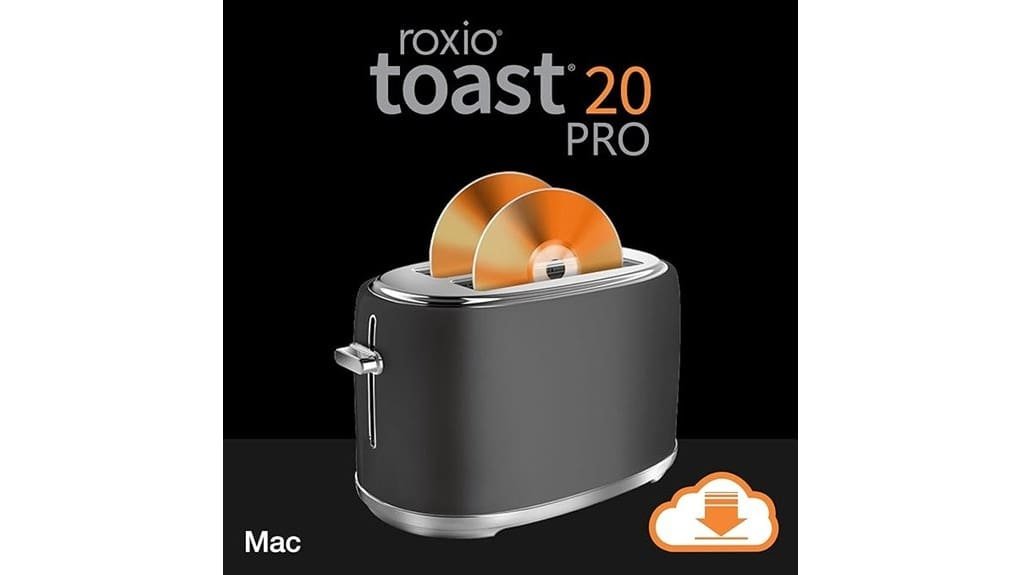
Roxio Toast 20 Pro gives you a dependable, all‑in‑one macOS tool for burning, copying, converting and capturing media, and it’s worth considering if you still work with optical discs or need fast, template‑driven authoring. You’ll get reliable burns, quicker transcoding, batch conversion, and tighter encryption than before, plus handy capture and basic editing tools. It’s less essential for cloud‑first users but a solid pick for archival and local workflows — keep going to see where it fits your setup.
Some Key Takeaways
- Toast 20 Pro is a single macOS app for burning, authoring, conversion, capture, and secure disc storage.
- It excels at fast, reliable CD/DVD/Blu‑ray burning and non-protected disc duplication.
- Newer version adds faster transcoding and stronger encryption for archive workflows.
- DVD authoring offers 100+ templates, a Template Designer, and pro customization options.
- Best for users who rely on optical media, local backups, or pro batch conversions; skip if cloud‑first.
Quick Verdict : Is Roxio Toast 20 Pro Worth It?
While Roxio Toast 20 Pro won't be essential for everyone, it’s worth it if you still rely on optical media, need reliable disc-to-file conversions, or want a single macOS app that handles burning, authoring, conversion, capture, and secure storage. You’ll find robust core disc burning, template-driven authoring, and fast file conversion that respect broad media compatibility. If you work with legacy discs or archive footage, Toast streamlines workflows and secures outputs. User feedback highlights stability and practical tools; critics note niche appeal. You’ll pay for depth rather than novelty, but innovators who value integrated, dependable workflows will benefit. If you handle sensitive disposals, consider tools for secure data destruction to complement Toast’s archival and conversion features.
What’s New in Toast 20 Pro and Who It’s For
Roxio Toast 20 Pro builds on familiar strengths with focused upgrades that matter if you still work with discs, convert legacy media, or need an all-in-one macOS toolset. You’ll find faster transcoding, tighter encryption, and streamlined capture workflows that shave steps from archive and edit tasks. It’s tuned for home users who want simple, reliable backups and media conversions, yet adds pro-grade options—batch processing, higher-bitrate encodes, customizable templates—that appeal to professional videographers. If you prioritize innovation in practical tools rather than flashy extras, Toast 20 Pro narrows the gap between consumer ease and studio-capable features without unnecessary complexity. Many small businesses and homeowners pair these capabilities with portable SSDs for fast, reliable off-device backups and media transport.
Core Features Tested: Burning, Copying, and Format Conversion
Dive straight into Toast 20 Pro’s core: burning, copying, and format conversion — the areas that determine whether it’s a practical tool or just another media suite. You’ll burn CDs, DVDs, and Blu-rays with drag-and-drop ease, and duplicate discs reliably for backups. Copying non‑protected discs to digital files was quick and preserved disc integrity in my tests. The conversion tool handles popular formats and supports efficient batch conversion, so you’ll process large libraries without babysitting. Overall, Toast 20 Pro feels engineered for productivity: fast, predictable, and suited to innovators who expect professional results from basic workflows. Consider pairing it with NAS drives for secure centralized storage and easier media access across devices.
Creative and Capture Tools in Practice: Authoring, Editing, and Templates
Get your projects looking and sounding polished with Toast 20 Pro’s authoring and capture tools: you’ll build DVDs from 100+ templates, tweak layouts in Template Designer, record screens and webcams, and make quick edits without switching apps. You’ll appreciate Template customization that’s direct and powerful — change backgrounds, music, and text with predictable results. Screen capture is crisp, integrates with the editor, and speeds workflows. Photo painting adds creative polish when you need it, avoiding external editors. Audio trimming is precise, non-destructive, and synced to your cuts. Overall, the suite favors fast, innovative output for serious creators. Many small businesses and creatives pair Toast’s output with specialized hardware like light boxes for product photography and tracing work to produce consistent, professional visuals.
Performance, Price, and Alternatives : Buy, Upgrade, or Skip?
While you’ll see fast disc burns and responsive editing on modern Macs, real-world performance varies with drive speed, file formats, and whether you’re multitasking—you should expect quick transfers for standard CD/DVD jobs but longer waits for Blu-ray authoring, large codecs, or complex edits. You’ll appreciate solid performance benchmarks for basic conversion and backup tasks, but pros working with heavy codecs may find limits. Price comparison shows Toast Pro sits midrange for pro features; upgrades are reasonable if you need disc authoring, encryption, and templates. Buy if you rely on discs, upgrade selectively, otherwise skip for cloud-first workflows. For home and small business users, consider whether your network needs and device counts make a network switch necessary before investing in software solutions.
Some Questions Answered
Does Toast 20 Pro Work on Apple Silicon Macs Natively?
Yes — Toast 20 Pro offers native support on Apple Silicon Macs, so you'll get optimized performance for burning, copying, conversion, and editing. If you hit a legacy plug‑in or rare module, the app falls back to Rosetta fallback to maintain compatibility. You’ll appreciate the smoother workflows and faster exports when running natively, and the Rosetta fallback ensures you won't lose access to older toolchains while you migrate to Apple Silicon.
Can Toast 20 Pro Import Playlists From Streaming Services?
No — you can't directly import playlists from streaming services because of streaming limitations and DRM. You can, however, export or recreate tracks you legally own, then use Toast's playlist conversion workflow to assemble them for burning or conversion. You'll need to first obtain non-protected files (ripped or downloaded within service rules), then import those into Toast. This approach respects streaming limitations while enabling playlist conversion for innovative backup and authoring.
Is There a Trial Version and How Long Does It Last?
Yes — you get a free trial with a standard time limit. You can download and run the trial to evaluate core features like burning, conversion, capture, and encryption before buying. The time limit is brief, so plan tests for playlist import, format conversion, and template design early. You’ll be able to judge performance and workflow quickly; if it meets your innovative needs, you can upgrade to the full Pro license.
Does Toast 20 Pro Support M-Disc Archival Burning?
Yes — you can burn M-Disc media with Toast 20 Pro for archival longevity, and it’ll handle optical compatibility with modern burners. You’ll get reliable, long-term writes when you choose M-Disc and compatible hardware; Toast manages the burning and verification confidently. You’ll want to confirm your drive’s M-Disc support first, but once paired, Toast provides an authoritative, streamlined workflow for creating durable archival optical backups.
Can Backups Be Scheduled Automatically Within the App?
Yes — you can set up automatic backups inside the app, and it lets you schedule tasks with regular intervals so your discs or files are copied without manual steps. You’ll also get scheduled encryption options to secure backups with strong passwords. You’ll appreciate the streamlined controls and template-like presets for recurring jobs; they’re practical, reliable, and designed for users who want automated, secure backup workflows without needless complexity.