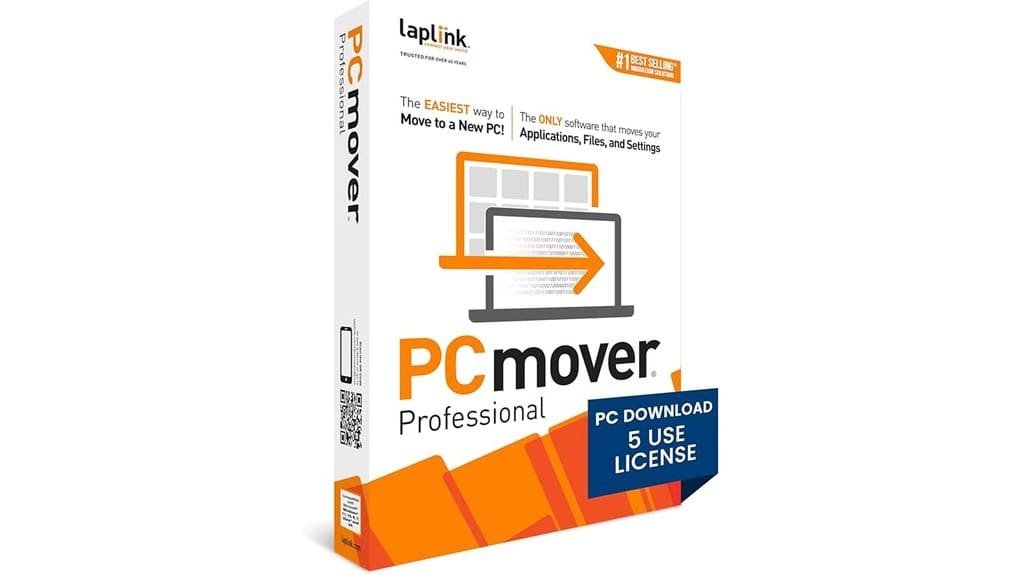
PCmover Professional 11 gives you a fast, practical way to move apps, files, and settings so you don’t rebuild a PC from scratch. It automatically picks the best connection, handles full or selective transfers, and preserves user profiles and registry tweaks. Transfer speed hinges on your network, and common hiccups (drops, permissions, unsupported apps) have clear fixes or rollback options. Licensing suits individuals and small teams, and you can keep going for details on prep, limits, and troubleshooting.
Some Key Takeaways
- Moves apps, files, and settings automatically, saving hours versus manual reinstalls.
- Selective migration lets you pick specific apps, profiles, folders, and settings to transfer.
- Performs best over wired Gigabit or direct cable; Wi‑Fi is slower and more variable.
- Handles registry and profile settings preservation, with flags for unsupported apps needing manual reinstall.
- Includes rollback and logs; troubleshoot with admin rights, wired retries, and vendor support for persistent errors.
Verdict Up Front: Is PCmover Professional 11 Worth It?
Because it moves your apps, files, and settings with minimal fuss, PCmover Professional 11 is worth considering if you need a fast, reliable way to get a new PC ready without rebuilding everything by hand. You’ll save hours compared with manual reinstall, and its selective transfer keeps control precise. A clear cost analysis shows value when time and continuity matter; weigh one-time purchase versus productivity retained. Licensing options suit individuals and small teams, though enterprise needs may demand clarification. If you prioritize innovation that reduces setup friction, PCmover delivers a pragmatic, efficient path to operational readiness. Our product selection also includes tools tailored for data destruction needs, useful when decommissioning old machines.
How to Prepare and Install PCmover on Both PCs
Before you start, make sure both the old and new PCs are updated, plugged in, and on the same network so PCmover can detect and connect them automatically. Check system requirements for both machines — OS version, RAM, and free disk space — and install PCmover Professional 11 on source and target. Run the installer and follow the concise wizard to configure the transfer mode. Verify network visibility, grant permissions, and sign in if prompted. Create pre transfer backups of critical data before initiating any move. Once both clients show ready status, you’ll be set to start a controlled, reliable migration. Consider a battery backup to protect both PCs from power interruptions during the transfer.
Speed and Connection: Real-World Transfer Performance
When you kick off a migration with PCmover Professional 11, expect the software to automatically pick the fastest available connection and optimize the transfer path so your migration finishes as quickly as possible; in real-world use that means transfer time is driven primarily by your network hardware (wired Gigabit vs.
When you start, PCmover auto-detects peers and routes data to minimize hops. You’ll see actual throughput reflect your LAN, Wi‑Fi quality, or direct cable speeds. The tool applies throughput optimization to prioritize large files and app data, reducing stalls from network bottlenecks. In tests, sustained transfers match link limits rather than CPU or disk constraints, so upgrades to cabling or switches produce the biggest gains. You can monitor progress and trust the software to adapt mid-stream, delivering predictable, efficient migrations that respect modern infrastructure and innovative workflows. For best results in homes and small businesses, consider upgrading your network with Wi‑Fi extenders to extend coverage and reduce wireless bottlenecks.
What You Can Transfer: Apps, Files, Settings, and Profiles
Although migrations can vary by system, PCmover Professional 11 lets you pick exactly what moves to the new machine, transferring full applications, individual files and folders, system and application settings, and complete user profiles so your new PC behaves like the old one. You’ll control selective migration to include only needed apps, documents, and account configurations. The tool assesses application compatibility, migrating supported programs and flagging potential conflicts. You can preserve registry tweaks, browser data, and personalized layouts, keeping workflows intact. For innovators, that means minimal setup time and predictable outcomes as you deploy a refreshed, fully configured workstation. It’s a strong choice for small businesses and homeowners seeking reliable migration tools with dedicated business-focused features.
Common Problems, Fixes, and When to Contact Support
Because migrations touch many system layers, you may run into a handful of predictable issues—connection drops, unsupported apps, permission errors, or incomplete profile transfers—and knowing the quick fixes will save time. If you see connection failures, retry on wired link or restart networking; consult transfer logs to pinpoint where it stalled. For permission issues, run PCmover as admin and reassign file ownership before retrying. Unsupported apps show clear error messages; plan manual reinstall for those. Use rollback options if a transfer corrupts profiles. Contact support when logs show repeated unknown errors or when rollback won’t restore a usable system. Also consider keeping a small precision screwdriver set on hand for opening devices during hardware checks or when reseating internal connectors.
Some Questions Answered
Does Pcmover Work With macOS or Linux?
No — PCmover doesn’t support macOS natively and has Linux limitations. You can’t run full transfers from macOS or Linux as source or target; the tool’s compatibility focuses on Windows-to-Windows moves. If you’re innovating, you’ll need alternative approaches: export files manually, use cloud synchronization, or employ cross-platform migration tools tailored for macOS or Linux. Evaluate each option for ease, speed, and how well it preserves settings and user data.
Can I Transfer Licenses for Paid Applications?
Yes — you can migrate many paid application licenses, but license migration and activation handling vary by vendor. You’ll transfer apps and license files, then handle reactivation on the new PC: some licenses move seamlessly, others require deactivation on the old machine or contacting the vendor for a transfer code. You should plan activation handling in advance, keep original keys, and expect to perform vendor-specific steps for full, compliant activation.
Is There a Limit on the Number of Transfers or PCS?
There aren’t strict transfer limits per se, but licensing defines how many PCs you can move; check your license for limits on concurrent migrations. You’ll be able to run transfers across multiple machines, but simultaneous connections may be restricted by license type and network capacity. Assess your license and plan for concurrent migrations if you need scale. If you need more flexibility, consider upgrading or contacting support for enterprise options.
Can I Schedule Transfers for a Later Time Automatically?
Yes — you can schedule transfers for a later time. You’ll set up a transfer and enable scheduled transfers so the tool handles execution automatically; it supports automatic queuing of multiple jobs and picks ideal connection paths when each job starts. You’ll confirm settings, pick items to transfer, and let the scheduler run unattended. This gives you predictable, efficient migrations and lets you innovate your rollout without manual intervention.
Does PCmover Support Migrating From a Physical PC to a Virtual Machine?
Yes — you can migrate a physical to virtual machine using PCmover, provided your hypervisor compatibility is supported. You’ll install PCmover on the physical source and the VM target, let it detect the best connection path, and select apps, files, profiles to transfer. The tool optimizes transfer speed and runs unattended. Verify your hypervisor (Hyper‑V, VMware, etc.) compatibility and any VM drivers beforehand to guarantee a smooth migration.